


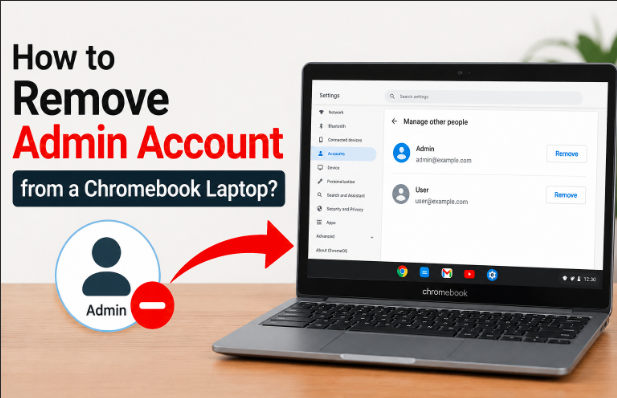
To remove an admin account from a Chromebook, you must perform a factory reset — also called Powerwash. This wipes all local data and user accounts, letting you sign in with a new Google account that becomes the new owner.
Before you start, back up everything important to Google Drive or a USB drive. Once the reset runs, local data is gone permanently.
Personal Chromebook vs School Chromebook — What’s the Difference?
The right method depends entirely on what type of Chromebook you have. Here’s how to tell.
Personal Chromebook
On a personal Chromebook, the first Google account that signs in becomes the owner and admin. You can remove or change the owner, usually by factory resetting through Powerwash, and the first Google account signed in after setup automatically becomes the new owner with full control over system settings. This is the only device type where admin removal actually works.
School or Work Chromebook
If your device displays a message such as “This device is managed by your school or organisation,” you cannot bypass it legally or technically. These Chromebooks are registered in a Google Admin console and re-enroll automatically after every reset, so Powerwash alone will not remove the admin on a managed device.
How to Remove a Secondary (Non-Owner) Account from Chromebook?
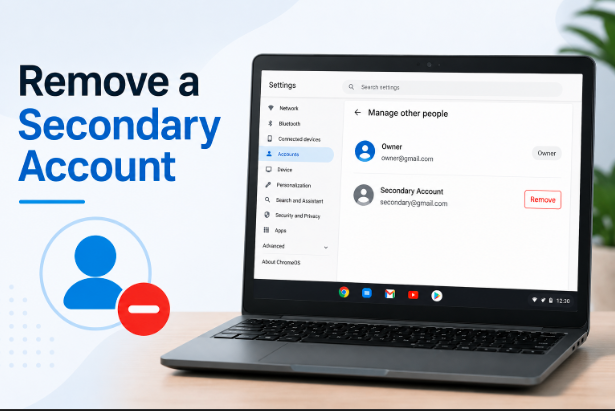
If the account you want to delete is not the main owner, no reset is needed at all. Here’s the quickest way.
Remove Account from the Sign-In Screen
On the login screen, you will see a list of users — the admin will usually be labeled as Owner or Administrator. Click the three-dot menu next to the account, select “Remove this user,” and confirm when asked. This removes that account from the device only, not from Google entirely.
Remove Account from Inside Settings
If you are already logged in, open Settings → Accounts, select the account you want to delete, and choose Remove. The Google account itself is not deleted and no system reset is required — the account is only removed from that Chromebook. This works cleanly for secondary users without touching owner-level access.
How to Remove the Owner/Admin Account Using Powerwash?
Powerwash is the standard, Google-approved way to remove the owner account from a personal Chromebook. It resets everything.
Back Up Your Data First
A Powerwash resets the Chromebook to factory settings and removes all local data stored on the device — including locally saved files, installed apps and extensions, and user settings and profiles. Cloud data like Google Drive files and Gmail stays safe online, so sync everything before you start.
Powerwash from Inside Settings
Log out of your account, then press Ctrl + Alt + Shift + R — a dialog box will appear. Click Restart, then on the next screen click Powerwash and Continue. Your device will restart and reset, deleting all local files and users. After rebooting, you sign in with a new Google account which becomes the fresh admin.
Powerwash from the Login Screen (No Password Needed)
If you don’t know the current owner’s password, you can still reset it. At the sign-in screen, press Ctrl + Alt + Shift + R, select Powerwash, and confirm the reset. This is the most common solution for second-hand Chromebooks where the previous owner never signed out before selling.
How to Remove Admin Using Developer Mode?
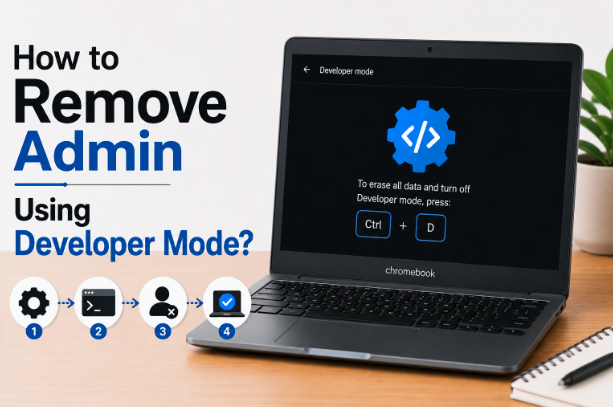
Developer Mode is a more advanced option when Powerwash is blocked or unavailable. Use it carefully.
How to Enter Developer Mode
Turn off your Chromebook, hold Esc + Refresh and then press the Power button — upon boot, you’ll enter recovery mode. Follow the on-screen instructions by pressing Ctrl + D, then confirm activation of Developer Mode and allow the process to complete. The device will wipe all user data automatically during this process.
What Developer Mode Actually Does
Entering Developer Mode wipes user data, accomplishing the goal of removing the administrator account — however, note that this method can void warranties and disable verified boot, making your device less secure. Only use this if the standard Powerwash method is not available to you.
How to Remove Admin from a School Chromebook?
This is the most searched situation — and unfortunately the most limited one. Here’s the honest answer.
Why Powerwash Doesn’t Work on School Devices
After reset, managed Chromebooks automatically re-enrol once connected to the internet — this prevents bypassing restrictions. So even if you successfully run a Powerwash, the school’s admin control comes back the moment the device connects to Wi-Fi.
What You Can Actually Do
The device is registered in an organisation’s Google Admin console — only that organisation can de-provision it. Your real options are to contact your school’s IT department, request official de-enrolment if you now own the device, or return it if it was issued to you. There is no workaround that is both legal and reliable.
What to Do After Removing the Admin Account?
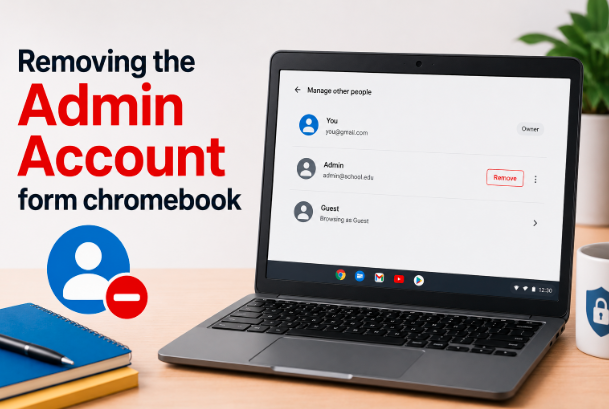
Once the reset is complete, setting up the new owner account correctly takes less than two minutes.
Set Up the New Owner Account
After the Powerwash completes, set up as usual with whichever Google Account suits you best — your device should now feel brand new. The very first Google account you sign in with after the reset becomes the permanent new owner and admin of the device.
Add Other Users Without Giving Admin Access
After setting up the new owner account, additional users can be added safely without giving them owner-level access — this is ideal for shared devices, as secondary accounts can use the Chromebook without changing system settings or security preferences. Only the first account holds the admin role, so your settings stay protected.
FAQs
Can I remove the admin account without resetting the Chromebook?
Only if it’s a secondary (non-owner) account. The admin is tied to the first account used — you must reset or Powerwash to fully remove it if it is the owner account. There is no shortcut for owner-level removal.
Will removing the admin account delete my Google Drive files?
No. Cloud-based data linked to Google accounts is not deleted — Google Drive files, Gmail, Photos, and other synced content remain safely stored online and can be accessed again once you sign in on another device. Only files saved locally on the Chromebook are erased.
Can I remove the admin from a school Chromebook without a password?
Password-based removal is only possible on personal, unmanaged Chromebooks — if the device is enrolled to a school or organisation, no password, reset combination, or developer mode option will remove the administrator without official de-enrolment.
What happens to other user accounts after a Powerwash?
Only the first Google account used after rebooting becomes the owner/admin — others can have access but not admin privileges. All previous accounts are completely wiped from the device.
Should I remove accounts before selling my Chromebook?
Absolutely yes. Leaving accounts on a device creates serious security risks — if an admin or owner account remains linked, the next user may be blocked from setting up the Chromebook properly, or gain unintended access to personal data. Always Powerwash before handing it to anyone.
Conclusion
Removing an admin account from a Chromebook is simple on a personal device — Powerwash is all you need. Back up your data first, run the reset, sign in with a new Google account, and you’re set with a clean device and a fresh admin.
For school or work Chromebooks, the admin is locked at the hardware level and only the managing organisation can remove it. No reset, no developer trick, and no workaround will permanently bypass that. Know which type of device you have before you start, and the whole process becomes much clearer.
Related Articles
Sell HP Laptop – Complete Guide to Selling Your HP Laptop for the Best Price
KEFEYA Laptop Screen Extender – Complete Guide for Productivity & Portable Multi-Monitor Setup
How to Transfer Photos from iPhone to Chromebook — Complete Guide 2026
Laptop Screen Wet — What to Do Immediately Before Permanent Damage