





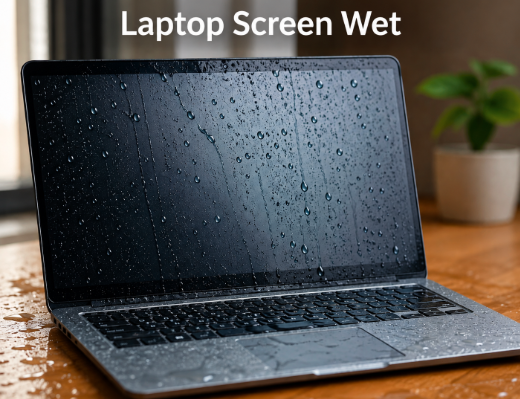
If your laptop screen got wet, immediately turn the laptop off, unplug every power source, and let it dry properly for 24–48 hours before turning it back on. A wet laptop screen can develop serious internal damage if moisture reaches the LCD layers or motherboard.
Quick action is the most important thing here. The faster you respond, the better the chance of saving your laptop screen without expensive repairs.
What Happens When Your Laptop Screen Gets Wet
Water inside a laptop screen can damage sensitive display components and internal circuits. Sometimes the damage appears instantly, while in other cases problems show up after the moisture dries inside the screen.
How Water Damages the Screen Internally?
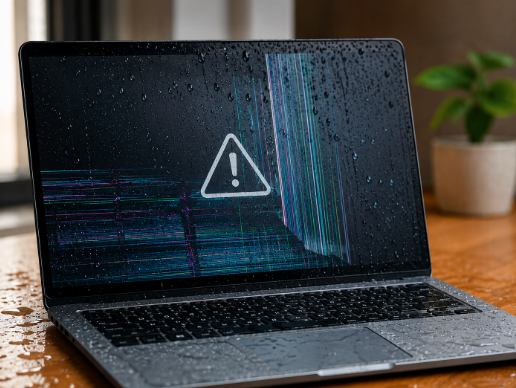
A laptop display contains multiple thin layers that control light and color output. When water enters these layers, it can interrupt electrical connections and create short circuits inside the panel.
This may cause dark spots, screen flickering, blurry patches, ghost lines, or display discoloration. In severe cases, the screen may stop working completely after the liquid reaches deeper internal components.
Why Coffee and Juice Are More Dangerous Than Water
Plain water is still harmful, but sugary drinks like coffee, juice, or soda are much worse for electronics. These liquids leave sticky residue and can corrode delicate internal parts much faster.
Alcoholic and acidic liquids can also damage the screen coating and motherboard connections. If any sweet or colored liquid was spilled, professional cleaning may become necessary.
Immediate Steps to Take After Your Laptop Screen Gets Wet
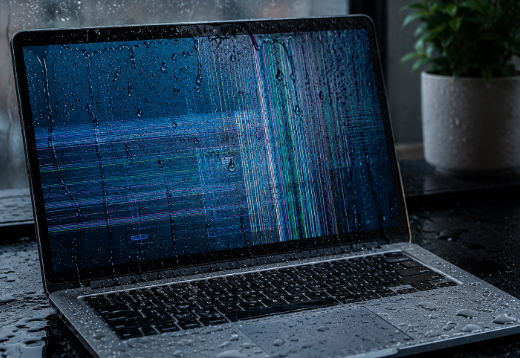
The first few minutes are extremely important. Following the correct steps in order can reduce the chances of permanent damage.
Step 1 — Turn Off the Laptop Immediately
Do not continue using the laptop even if the screen still works normally. Water and electricity together can quickly damage internal circuits once power continues flowing through wet components.
Press and hold the power button for several seconds until the laptop shuts down completely. Avoid saving files or restarting the device.
Step 2 — Disconnect Every Power Source
Remove the charger cable immediately after turning the laptop off. Then disconnect external devices like USB drives, headphones, mouse devices, or memory cards.
Cutting all electrical connections helps prevent additional short circuits while moisture is still inside the laptop.
Step 3 — Remove the Battery if Possible
If your laptop has a removable battery, carefully take it out after shutting the device down. This removes the remaining electrical supply from the internal hardware.
Modern ultrabooks and many MacBooks use sealed batteries. In those cases, skip this step and move directly to drying the laptop safely.
Step 4 — Wipe the Screen Carefully
Use a clean microfiber cloth to gently absorb visible liquid from the screen and keyboard area. Soft dabbing motions are safer than rubbing aggressively across the display.
Do not apply pressure to the screen because LCD panels are sensitive and can develop pressure marks or internal damage.
Step 5 — Place the Laptop Upside Down
Open the laptop carefully and place it in an inverted “V” or tent position. This allows gravity to help drain moisture away from the internal components.
Place the laptop on a dry towel in a ventilated room. Proper positioning can reduce the amount of liquid trapped inside the keyboard and screen area.
How Long Should You Let a Wet Laptop Screen Dry?
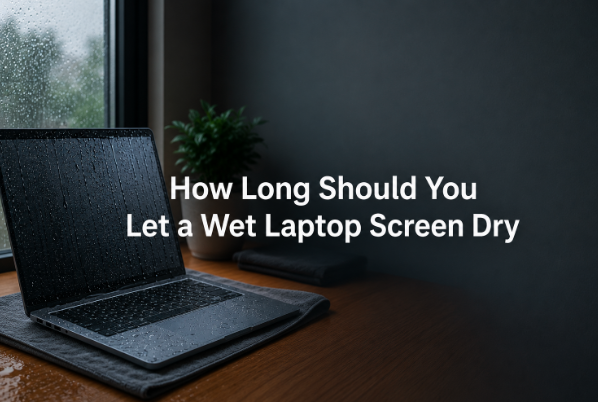
Drying time plays a major role in preventing permanent screen damage. Many laptops fail because users turn them back on too early.
The 24–48 Hour Drying Rule
Leave the laptop in a dry and ventilated environment for at least 24 to 48 hours. Even when the outer surface looks dry, internal moisture may still remain trapped inside the display or motherboard.
Waiting longer is always safer than rushing the process. Turning the laptop on too early can permanently damage components that were still recoverable.
Can You Use a Fan to Speed Up Drying?
A normal room fan placed a short distance away can help improve airflow around the laptop. Gentle airflow supports natural drying without overheating sensitive components.
Avoid placing the fan too close because excessive airflow can push dust particles deeper into the laptop vents.
Why Hair Dryers Are a Bad Idea
Using a hair dryer on a wet laptop screen is risky because high heat can warp display layers and damage delicate internal parts.
Strong hot air may also push moisture deeper inside the screen instead of removing it. Natural drying is much safer than heat-based drying methods.
What You Should Never Do After a Laptop Screen Gets Wet?

Many common internet “fixes” actually increase the chances of permanent laptop damage. Avoiding these mistakes is just as important as following the correct drying steps.
Do Not Put the Laptop in Rice
Rice is one of the most common but ineffective suggestions for water-damaged electronics. It does not properly remove moisture from large devices like laptops.
Small rice particles can also get stuck inside laptop ports, cooling vents, and keyboard openings, creating additional cleaning problems later.
Do Not Turn the Laptop On Repeatedly
Some users try turning the laptop on every few hours to “check” whether it works. This can make the damage worse if moisture is still inside the system.
Even one early power attempt can cause serious motherboard short circuits that may permanently kill the laptop.
Do Not Press Hard on the Screen
A wet LCD screen becomes more vulnerable to pressure damage. Pressing hard while cleaning can create dead pixels, pressure spots, or internal panel cracks.
Always handle the display gently during the drying process.
Signs Your Laptop Screen Has Permanent Water Damage
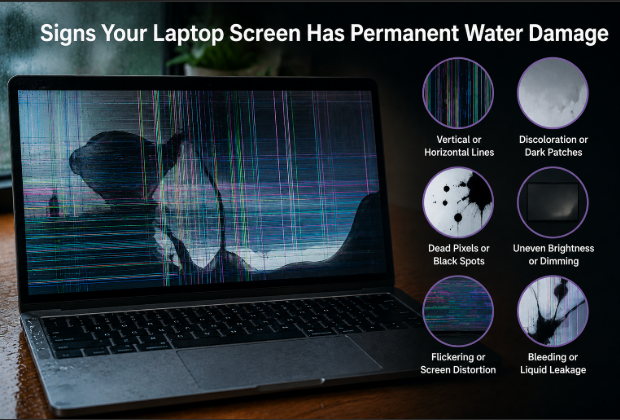
After the laptop fully dries, certain display problems may indicate that internal screen damage already occurred.
Common Visual Symptoms
Check the display carefully after powering the laptop back on. Permanent damage often appears as flickering sections, black spots, vertical lines, or faded areas on the screen.
Some screens may also show ghost images, color distortion, or uneven brightness after water exposure.
When the Screen Still Works but Looks Strange
Sometimes the laptop powers on normally, but the display quality changes noticeably. This usually means moisture affected the LCD layers or display connectors internally.
Minor issues may improve over time, but persistent visual problems often require screen replacement.
When Professional Repair Is Necessary
If the laptop refuses to power on or the display remains heavily damaged after drying, professional repair becomes the safest option.
Technicians can inspect the motherboard, clean corrosion, and determine whether repair or full screen replacement is more cost-effective.
How to Prevent Water Damage to Your Laptop Screen?
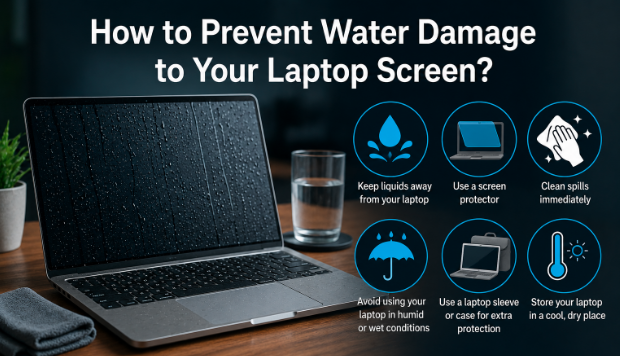
Preventing spills is much easier and cheaper than repairing a damaged display or motherboard.
Use a Keyboard Cover
A silicone keyboard cover creates an extra protective barrier against accidental spills. It helps reduce the amount of liquid entering the internal hardware.
This simple accessory is inexpensive and useful for students, office workers, and remote employees.
Keep Drinks Away From the Laptop
Most accidents happen when drinks are placed directly beside the laptop. Keeping liquids on a separate table significantly reduces spill risks.
Using bottles with secure lids also helps prevent accidental leaks during work or travel.
Store the Laptop in a Protective Sleeve
Water-resistant laptop sleeves provide additional protection while carrying devices outdoors or during travel.
A good protective case can reduce exposure to rain, dust, and accidental moisture contact.
FAQs
Can a wet laptop screen recover completely?
Yes, many laptop screens recover fully if the liquid exposure was minor and the drying process started quickly. Fast action greatly improves the chance of saving the display.
How long should I wait before turning the laptop back on?
You should wait at least 24–48 hours before turning the laptop on again. If moisture is still visible anywhere, continue drying longer.
Can water damage appear days later?
Yes, corrosion and internal residue can slowly damage components even after the laptop seems normal initially. Some problems appear several days after the spill.
Is distilled water less dangerous than normal water?
Distilled water is slightly less conductive than tap water, but it can still damage internal electronics if left inside the laptop.
Should I open the laptop for drying?
Only open the laptop if you are comfortable handling electronics safely. Otherwise, external drying and professional cleaning are safer options.
Conclusion
A wet laptop screen does not always mean permanent damage, but acting quickly is critical. Turn the laptop off immediately, disconnect all power sources, wipe away visible moisture carefully, and allow the device to dry naturally for at least 24–48 hours.
Avoid using rice, hair dryers, or repeated power attempts during the drying process. If screen problems remain after proper drying, professional repair may be necessary. Quick action and patience are the best ways to protect your laptop from serious water damage.
Related Articles
Sell HP Laptop – Complete Guide to Selling Your HP Laptop for the Best Price
KEFEYA Laptop Screen Extender – Complete Guide for Productivity & Portable Multi-Monitor Setup
How to Remove Admin Account from a Chromebook Laptop?
How to Transfer Photos from iPhone to Chromebook — Complete Guide 2026